
How to disable commenting on a WordPress site
The purpose of this post is to highlight the necessary steps to disable commenting on an existing WordPress site.
- Disable commenting on the entire site:
- Go to the
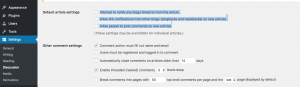
WordPress Admin Dashboard>Settings>Discussion - Uncheck all options under
Default Article Setting - Click on
Saveat the bottom of the page - IMPORTANT: This is only going to disable commenting for any pages/posts created from now on.
- See screenshot for reference (based on WordPress version 4.9.5):
- Go to the
- Disable commenting on already existing pages/posts:
- Please note that depending on what features your theme offers you will have to go through these steps for
Blog Posts,Pages, maybe evenPortfolioand potentially entries for other site features. - Let’s use
Blog Postsas an example- Select
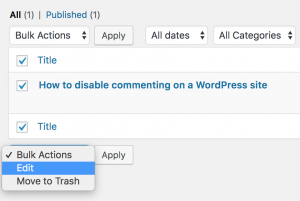
WordPress Admin Dashboard>Blog Posts>All Poststo view a list of all availableBlog Posts - Select existing posts you would like to disable commenting on. You can select specific ones or all.
- Select Edit from the
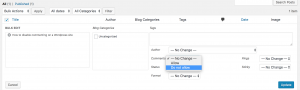
Bulk Actionsdropdown, then clickApply=> this will take you to a different view. In that view in the box underBulk Edityou can verify the list of posts that you selected. - Select
Do Not Allowfrom theCommentsdropdown - Click
Update
- Select
- See screenshots for reference (based on WordPress version 4.9.5):
- Please note that depending on what features your theme offers you will have to go through these steps for
- Disable Comments on a single
Page,Blog Post, etc.:- Let’s use
Blog Postsas example:- Select the
Blog Postfor which you want to update the commenting settings, then go ahead and selectEdit - Select
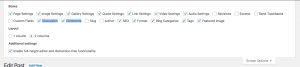
Screen Optionsin the top right corner of theBlog Post Editorpage - Check the
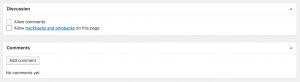
DiscussionandCommentscheckboxes - Scroll down in the
Blog Post Editorpage until you see theDiscussionandCommentssections - Make sure to uncheck all options
- Click on
Updateto save the updated Blog Post settings - See screenshots for reference (based on WordPress version 4.9.5):
- Select the
- Let’s use