How to Update Notifications in WordPress Gravity Forms plugin
The purpose of this page is to summarize the steps to follow to update/customize an existing email notification template within the WordPress Gravity Forms plugin.
- Go to the
WordPress Admin Dashboard>Formsto list all the forms that you have - Hover over or click on
Settingsunderneath the name of the form that you would like to edit - Select
Notificationsto list all available notifications for your form - Select
Editunderneath the name of the notification - Scroll down to the
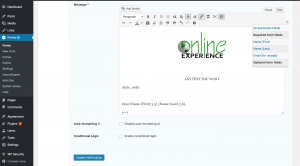
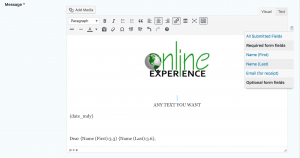
WYSIWYG editorto make changes to the notification email content. Use the editor just as you would use to edit aBlog PostorPage - In case you need to add values from any fields from your form into the notification, select that field from the dropdown by clicking on the upside down triangle icon near the top right corner of the
WYSIWYG editor - Once done editing click
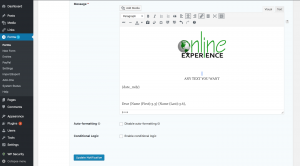
Update Notificationat the bottom of the page - Screenshots for reference (based on WordPress version 4.9.5 and Gravity Forms version 2.2.6):